


How to Use Receiptify: A Simple Step-by-Step Guide
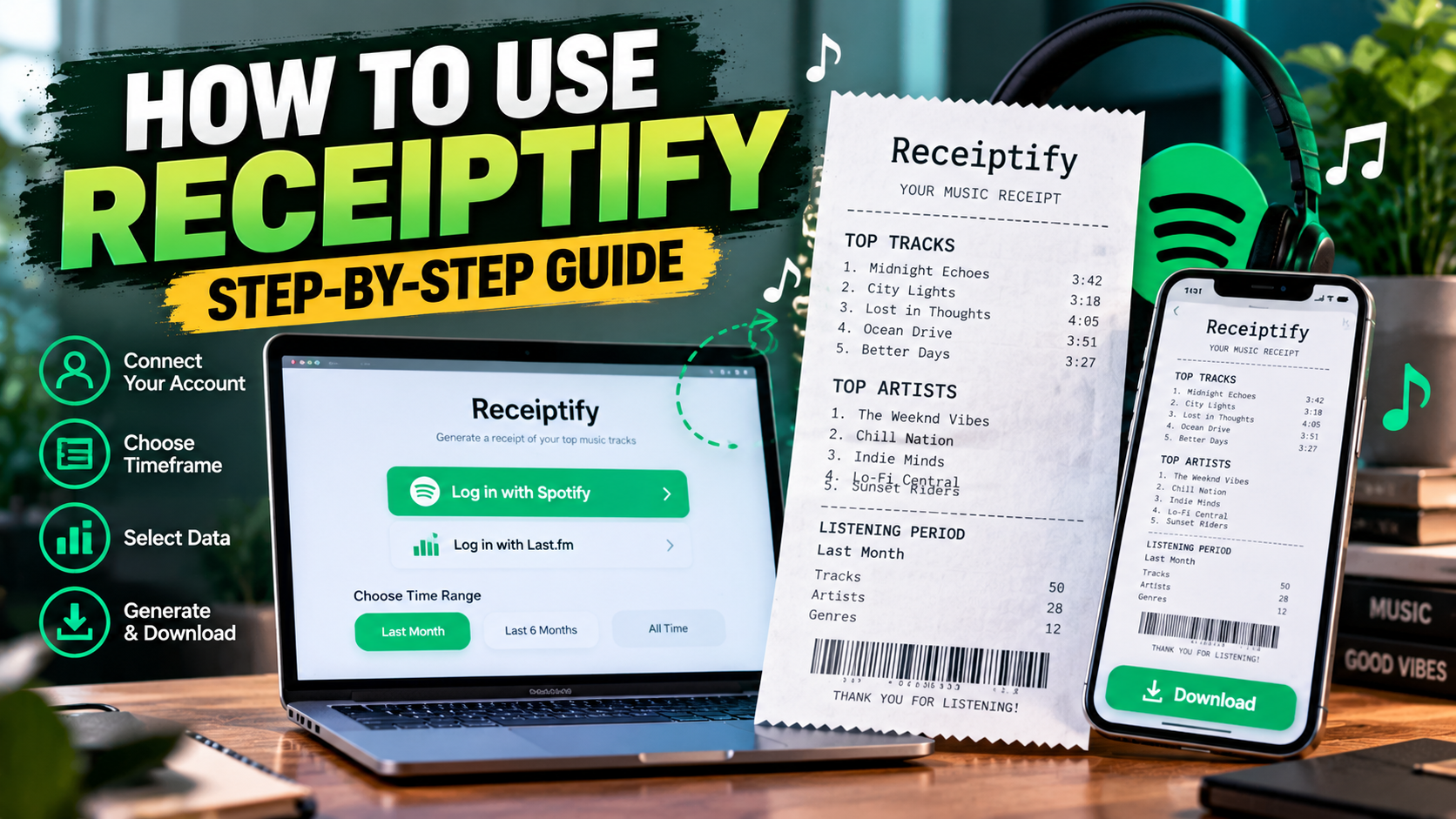
Music says a lot about our personality, and sometimes it is fun to see which songs and artists we listen to the most. Receiptify makes this more interesting by turning your music listening data into a receipt-style image that looks similar to a shopping receipt. It is a simple way to view and share your favorite tracks.
If you are new to Receiptify, learning how to use Receiptify can help you create your own music receipt in just a few minutes. how to use Receiptify The process is straightforward, and you do not need to install complicated software or spend a lot of time setting things up. Receiptify works through a web browser and uses your connected music account to create a personalized result.
What Is Receiptify?
Receiptify is a web-based music statistics tool that presents listening information in the style of a store receipt. Instead of showing your music data in a standard chart, it creates a visual list of tracks, artists, or other music information.
The idea became popular because the receipt format is simple, recognizable, and easy to share. You can use the generated image to show friends what you have been listening to or post it on social media.
Depending on the available account and options, Receiptify can work with music listening data from supported platforms such as Spotify and Last.fm. The tool uses account authorization to access the information needed to create the receipt.
How to Use Receiptify with Spotify
Using Receiptify with Spotify generally takes only a few steps. Before starting, make sure you have access to your Spotify account and a stable internet connection.
Step 1: Open Receiptify
Start by opening the Receiptify website in a browser. You can use a desktop computer, laptop, tablet, or smartphone.
A modern browser such as Chrome, Edge, Firefox, or Safari should work well. You do not normally need to download a separate desktop program just to generate a receipt.
Step 2: Log In With Spotify
Look for the option to log in with Spotify. When selected, you should be redirected to Spotify's authorization page.
This is an important part of the process. Always check that you are entering your login information on the official Spotify authorization page rather than giving your password directly to an unfamiliar website.
Receiptify uses authorization to access relevant listening information. This means the service can request the data it needs without requiring you to manually provide your Spotify password to the receipt generator.
Step 3: Allow the Required Access
After logging in, Spotify may ask you to approve access for the application. Review the permissions before continuing.
If everything looks correct, approve the connection. You should then be returned to the Receiptify interface.
This step allows the tool to retrieve the music information required to create your personalized receipt.
Choose Your Listening Timeframe
One of the useful parts of Receiptify is that you can look at different periods of your listening history.
Depending on the available options, you may be able to choose a period such as:
- Last Month
- Last 6 Months
- All Time
Each option gives you a different view of your music habits.
For example, the Last Month option can show what you have been listening to recently. The Last 6 Months option gives you a broader picture, while All Time can highlight songs and artists that have remained important throughout your listening history.
Select What You Want to See
Receiptify is not limited to one type of music information. Depending on the current features available, you can choose different metrics or views.
These may include top tracks, top artists, genres, statistics, or other available options.
If you want to show your favorite songs, a top tracks view is usually the most interesting choice. If you are more interested in the artists you listen to, choose a top artists view instead.
Choosing the right metric makes the final receipt more useful and personal.
Pick Your Top Tracks
Some Receiptify options allow you to choose between a smaller and larger list of results.
A shorter list, such as a top 10, creates a cleaner receipt that is easy to view on a phone. A longer list can be useful when you want to explore more of your listening habits.
If you plan to share the result on Instagram Stories or another social platform, a shorter list may be easier for people to read.
Generate Your Music Receipt
Once you have selected your account, metric, and timeframe, Receiptify can generate the receipt based on the available listening data.
The result normally looks like a digital shopping receipt. Your selected songs, artists, or other information are arranged in a simple list.
Take a moment to review the result before downloading it. You may want to change the timeframe or metric if the first version does not show the type of music information you expected.
How to Download Your Receiptify Image
After generating your receipt, look for the download option provided by the tool.
The receipt can generally be saved as an image file, making it easy to keep on your phone or computer. The generated image can then be used for personal sharing or posted on social media.
If the download button does not work properly on a mobile browser, taking a screenshot can be a simple alternative. This can be especially useful when you are using a phone and only need the receipt for a quick social media post.
How to Share a Receiptify Receipt
One of the main reasons people enjoy Receiptify is that the final image is easy to share.
You can upload your receipt to platforms such as Instagram, Facebook, TikTok, or other social networks. You can also send the image directly to friends through a messaging app.
Adding a short caption can make the post more engaging. For example, you could ask friends to guess your most-played artist or compare your favorite songs with theirs.
The receipt format also works well for music discussions because people can quickly scan the list without reading a long statistics report.
What If Receiptify Is Not Working?
Sometimes a music statistics tool may not generate a receipt correctly. The problem could be related to your browser, account authorization, internet connection, or temporary service issues.
If Receiptify is not working, try refreshing the page first. If that does not help, check your internet connection and make sure your browser is updated.
You can also try clearing your browser cache or opening the service in another browser. If you recently changed your Spotify permissions, reconnecting the account may also help.
For login problems, make sure you are completing the authentication process through the proper Spotify login flow rather than repeatedly entering information on third-party pages.
Is Receiptify Useful?
Receiptify is useful for people who want a quick and visual way to explore their music habits. Instead of reading through complicated statistics, you get a simple receipt-style summary that can be understood at a glance.
It can also be more flexible than waiting for an annual music recap because users can create a snapshot based on available time periods. This makes it useful for checking recent listening trends or comparing different periods.
At the same time, Receiptify should be viewed as a third-party music statistics tool rather than a replacement for Spotify's own features.
Final Thoughts
Learning how to use Receiptify is quite simple. You connect your supported music account, approve the required access, choose your preferred metric and timeframe, and generate your personalized receipt.
 Arabic
 English
 French
 Spanish
 Portuguese
 Deutsch
 Turkish
 Dutch
Dutch
 Italiano
 Russian
 Romaian
 Portuguese (Brazil)
 Greek
Greek