


Why Does My IPTV Work on Mobile Data but Not on My Home Wi-Fi?
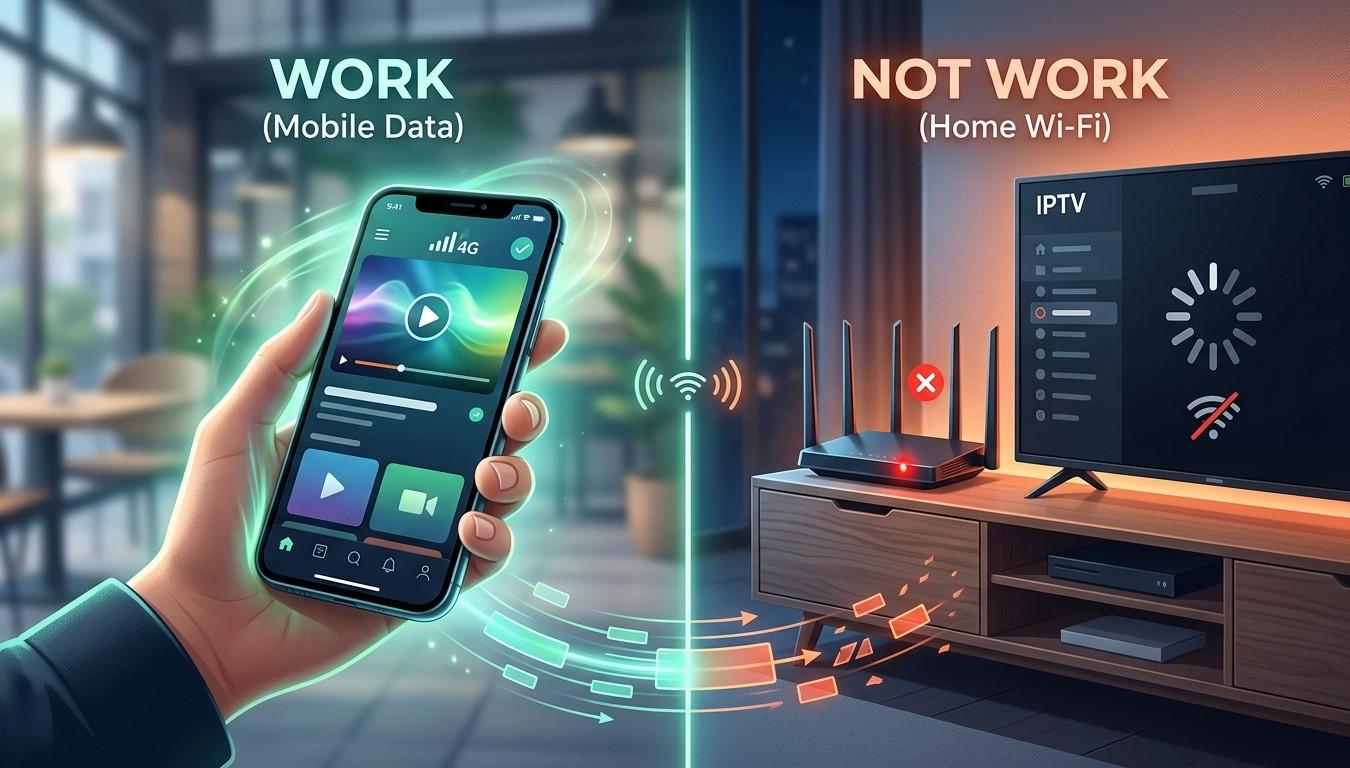
Your IPTV app loads instantly on your phone’s mobile data, then fails the moment you switch to home Wi-Fi. This is actually useful information, because it rules out several things at once. Your subscription is active, your login details are correct, and the app itself works. The problem lies somewhere in the path between your device and the internet through your home network. In this guide, we’ll explain the most common causes, how to narrow them down, and how to fix them so IPTV India works on your Indian IPTV Box at home again.
Table of Contents
- What This Symptom Tells You
- Cause 1: Router Filtering, Firewall, or Parental Controls
- Cause 2: DNS Problems
- Cause 3: ISP-Level Security Filters or Restrictions
- Cause 4: VPN, Proxy, or Custom Router Settings
- Cause 5: IPv6, MTU, and Other Network Quirks
- Cause 6: Wi-Fi Signal and Router Health
- Quick Diagnosis Table
- Step-by-Step Troubleshooting
- When to Contact Your Internet Provider or IPTV Provider
- FAQs
What This Symptom Tells You
When the same app and account work on mobile data, you’ve learned several things:
- Your subscription is active, so billing isn’t the problem
- Your login details or playlist link are valid
- The IPTV provider’s servers are reachable from at least some networks
- The app itself is installed and functioning
That narrows the search to your home network, your internet service, or settings between your device and the wider internet. It also helps to know the difference between two kinds of failure: the app can’t connect at all, or it connects but streams poorly. This article focuses on the first, such as “server not responding,” blank channel lists, or endless loading.
Cause 1: Router Filtering, Firewall, or Parental Controls
Many routers include features that quietly block traffic:
- Parental controls or web filtering, which may categorize streaming services or unfamiliar domains as blocked
- A built-in firewall with strict settings that stops certain connections
- Security features from your router brand, such as threat protection that can block sites it considers suspicious
- Access control lists, such as MAC address filtering, which only permit approved devices
- Guest network or device isolation, which can restrict what a device can reach
- Schedules or time limits set for particular devices
These settings often apply to only some devices. That’s why your phone on mobile data works (it bypasses the router entirely), while your box on Wi-Fi is blocked.
Cause 2: DNS Problems
DNS is the system that translates names, like a provider’s server address, into numeric addresses your device can connect to. If it fails, your internet can appear to work for some sites while your IPTV app gets nowhere.
Common DNS issues include:
- Your router or internet provider’s DNS server is slow or malfunctioning
- A DNS filter (on the router or a family-safety service) that blocks the name your app needs
- Cached bad information that persists until the router or device restarts
- A custom DNS setting left over from a previous change
Mobile networks use their own DNS, which is why the same app can work there. A DNS problem often causes errors like “unable to resolve host,” “server not responding,” or “connection timed out.”
Cause 3: ISP-Level Security Filters or Restrictions
Some internet service providers offer network-level security or content-filtering features, sometimes switched on by default or through an account setting:
- Network protection or “safe browsing” features that block categories of sites
- Account-level parental controls applied at the ISP, which can override your router
- Reputation-based blocking of certain addresses
- Regional or network-level restrictions that affect how certain services are reached from your connection
These are managed in your internet provider’s app or account portal, not on your router. Check what protection features are enabled, and ask your ISP what filtering applies to your line. Don’t try to work around any restriction in ways your ISP’s terms don’t permit. Ask them to explain it or adjust it.
Cause 4: VPN, Proxy, or Custom Router Settings
A configuration on your home network can interfere:
- A VPN running on the router that routes your traffic through a congested or blocked server. This is the most common one for “mobile works, Wi-Fi doesn’t” in households that use whole-home VPNs
- A proxy setting on the device or network that isn’t functioning
- Custom DNS, such as a filtering DNS service, configured at the router level
- A “kill switch” or firewall rule that blocks traffic when a VPN drops
- Port blocking or custom firewall rules set up for another purpose
If you or someone in your household has changed router settings recently, undo the most recent change and test again.
Cause 5: IPv6, MTU, and Other Network Quirks
Less common technical issues can also cause trouble:
- IPv6 problems. Some networks have a broken IPv6 configuration. Devices may try IPv6 first, fail, and never fall back to IPv4 cleanly. Turning IPv6 off on the router or device (if you’re comfortable doing so) can help as a test
- MTU mismatches. If data packets are too large for part of the path, some connections fail while others work. This is more common with certain DSL or tunneled connections
- Double NAT. If you have two routers in a chain, such as a provider’s modem-router combined with your own router, connection handling can become unreliable for some apps
- Wrong date and time on the device, which can break secure connections
- A stale IP address lease, which restarting the router and device often clears
These are typically rarer than DNS or filtering issues. Try the simpler fixes first.
Cause 6: Wi-Fi Signal and Router Health
Sometimes the problem isn’t blocking but a poor connection that fails during setup:
- A weak Wi-Fi signal between the router and your box
- Interference or a crowded Wi-Fi channel
- A router that’s overheated or needs a restart
- Outdated router firmware with bugs affecting some traffic
- Connection to the wrong network, such as a guest network, an extender with problems, or a neighbor’s network by mistake
- A failing Ethernet cable or port if your box is wired
A quick test is to check whether the box can load other apps or websites. If nothing loads, you have a general connectivity problem rather than something specific to IPTV.
Quick Diagnosis Table
| What you observe | Likely cause |
|---|---|
| Works on mobile data, fails on Wi-Fi on every device | Home network, router, DNS, or ISP filtering |
| Fails only on your Indian IPTV Box, while a phone on Wi-Fi works | Device settings, MAC filtering, device-specific parental controls |
| Other apps and sites work, IPTV app fails | DNS, filtering, firewall, or ISP restriction |
| Nothing loads on Wi-Fi | General connectivity, router, or modem problem |
| Works on Ethernet, not Wi-Fi | Wi-Fi signal, interference, or Wi-Fi-specific settings |
| Started after a router or VPN change | The recent configuration change |
| Fails only when a VPN is on | VPN server or kill switch issue |
Step-by-Step Troubleshooting
Work through these in order:
- Confirm the pattern. Test the same app on mobile data and on Wi-Fi with the same device if possible, then test another device on Wi-Fi
- Restart your modem and router, modem first, then router, as described in our guide on restarts
- Restart your box or device and reopen the app
- Check other apps and websites on the Wi-Fi connection to see whether the problem is general
- Check the date and time on your device and set them to automatic
- Turn off any VPN or proxy on the device and on the router, then test
- Try Ethernet instead of Wi-Fi to separate a signal problem from a filtering problem
- Check the router for parental controls, web filtering, security features, and access lists, and disable them temporarily to test
- Check device lists for MAC filtering or blocked devices, and confirm your box is allowed
- Test a different DNS server. You can change DNS on the device or router to a reputable public DNS service, then restart and test. If this works, DNS was the cause. Keep notes so you can reverse the change
- Flush or refresh the connection by forgetting the Wi-Fi network on the box and reconnecting
- Check your ISP’s account portal or app for security or filtering features, and review which are enabled
- Test with IPv6 off, if your router or device offers that setting, as a diagnostic step
- Check for double NAT. If you have two routers, consider putting the second in bridge or access point mode, or connecting directly through the main one
- Update router firmware and the box’s firmware and app
- Try a mobile hotspot from your phone to the box. If it works there, your home network is confirmed as the cause
- Reset the router to defaults as a last resort, after noting down settings you’ll need to re-enter, such as your Wi-Fi name and password
If you change several settings at once, you won’t know which one fixed or broke things. Change one at a time and test after each step.
When to Contact Your Internet Provider or IPTV Provider
Contact your internet provider if:
- Disabling router filters and trying a different DNS doesn’t help
- You suspect network-level filtering or restrictions on your line
- Other services also behave oddly on your connection
- Your provider’s equipment seems to be at fault
Ask them whether any security or filtering features are active on your account, and whether anything could be blocking the service you’re trying to reach.
Contact your IPTV provider if:
- The service works on other home networks but not yours
- You’ve ruled out your router settings and DNS
- They may be able to check whether your connection’s public address is being blocked or flagged on their side
Share what you’ve tested: which networks work, which devices fail, and any error messages. Your provider may ask for your public IP address, which you can find through a reputable “what is my IP” website.
FAQs
1. If it works on mobile data, does that mean my IPTV subscription is fine?
Yes. A working login on another network shows your account, subscription, and app are working. The problem lies in your home network, DNS, or ISP.
2. Could my router be blocking my IPTV app?
It’s possible. Parental controls, web filtering, firewall rules, MAC address filtering, or a VPN configured on the router can all block traffic selectively.
3. Will changing my DNS fix this?
Sometimes. If your current DNS is failing or filtering the domain your app needs, switching to a different reputable DNS service can solve it. If nothing changes, the cause is likely elsewhere.
4. Why does it fail on my Indian IPTV Box but work on my phone over the same Wi-Fi?
Check for device-specific issues such as MAC filtering, parental controls applied to the box, a wrong date and time, an outdated app, or the box connecting to a different network.
5. Is my internet provider blocking IPTV?
Not necessarily. Many failures come from router settings or DNS. But some ISPs offer account-level filtering, so it’s worth checking your account portal and asking them directly.
Get Back to Streaming at Home
When mobile data works and Wi-Fi doesn’t, you already know the problem is close to home, and most cases come down to filtering, DNS, or a recent settings change. Pair a dependable IPTV India subscription with a well-configured Indian IPTV Box and a healthy home network to keep your channels working wherever you watch. Explore our IPTV plans today and enjoy smooth streaming at home.

 English
 Arabic
 French
 Portuguese
 Deutsch
 Turkish
 Dutch
Dutch
 Italiano
 Russian
 Romaian
 Portuguese (Brazil)
 Greek
Greek