


How to Scan Documents and Convert Photos to PDF on iPhone
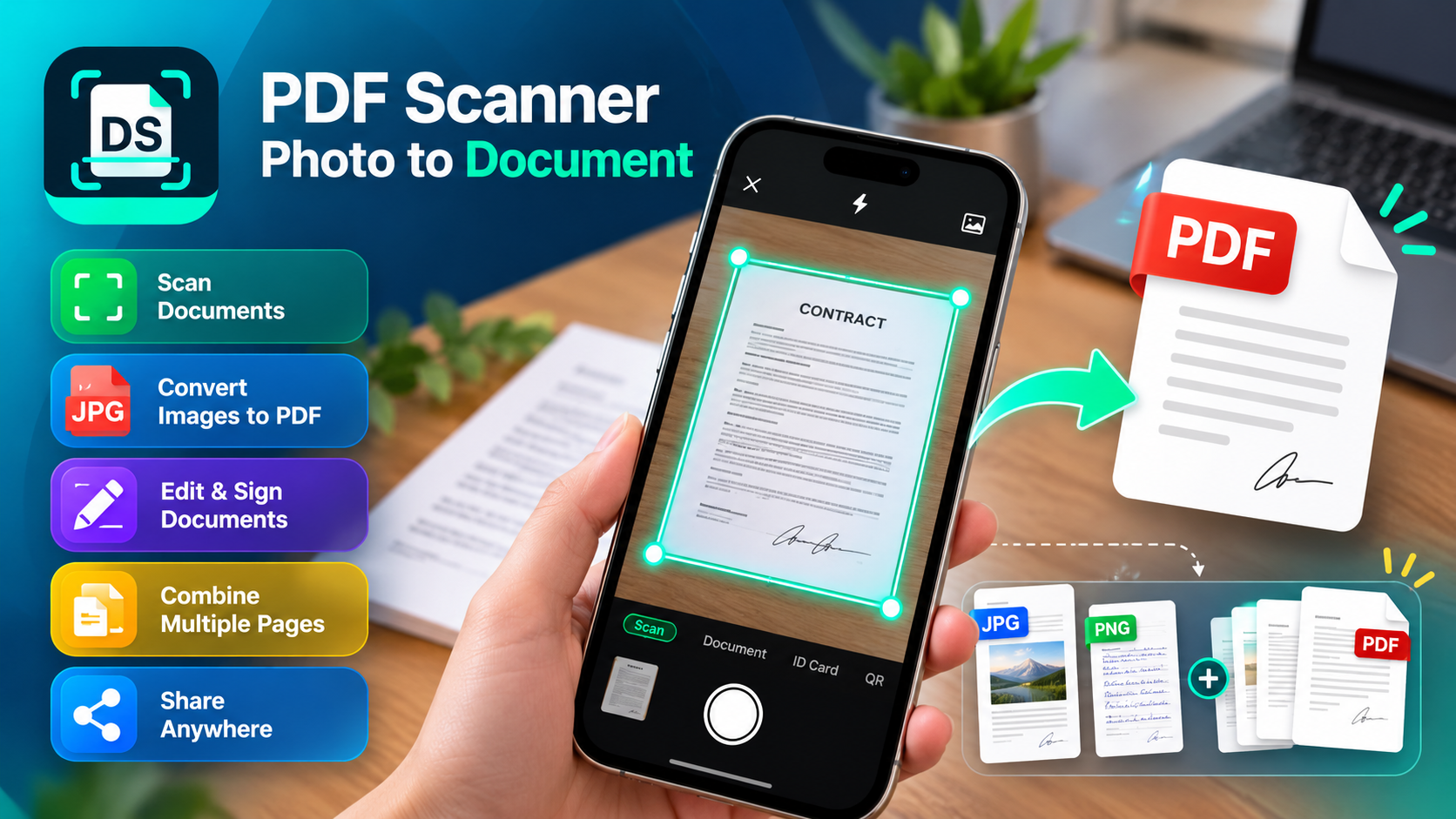
Need to scan an important document but don't have access to a printer or scanner? Your iPhone can help you turn paper documents, receipts, photographs, and forms into digital PDF files within minutes.
Whether you're a student submitting assignments, a freelancer sharing contracts, or a professional managing business paperwork, a PDF scanner app for iPhone makes document scanning convenient.
PDF Scanner: Photo to Document lets users scan documents, convert JPG and PNG images into PDFs, combine multiple pages, and share files directly from their phones.
Turn Paper Documents Into PDFs Using Your iPhone
Imagine receiving a printed form that needs to be emailed immediately. Instead of searching for a scanning machine, you can capture the document with your iPhone camera.
A document scanner app processes the captured image, identifies document boundaries, and creates a shareable PDF.
PDF Scanner: Photo to Document includes automatic cropping and image filters to help improve document readability.
For better scanning results, place your document on a flat surface, use sufficient lighting, and avoid shadows or reflections.
How to Scan a Document to PDF on iPhone
Wondering how to scan documents using an iPhone camera?
Follow these simple steps:
-
Open PDF Scanner: Photo to Document on your iPhone.
-
Select the document scanning option.
-
Position your camera above the paper document.
-
Capture the page while keeping all corners visible.
-
Review the detected edges and adjust the crop if necessary.
-
Apply available image filters to improve clarity.
-
Save the scanned document as a PDF.
Before sharing, inspect the saved file to ensure every page is readable and important details remain visible.
Already Have Photos? Convert JPG or PNG to PDF
Sometimes, documents are already stored in your photo gallery.
You might have photographs of handwritten notes, invoices, receipts, or printed forms that need converting.
The app's image to PDF converter supports JPG, JPEG, and PNG images, allowing you to create PDF documents from existing photos.
Choose the images from your gallery, arrange them in the desired order, and convert them into a PDF.
This is particularly useful for combining photographed documents into a format that's easier to share and organize.
Combine Multiple Pages Into One PDF File
What if your assignment, agreement, or application contains several pages?
Sending each page as a separate image can make documents difficult to review.
PDF Scanner: Photo to Document includes a merge PDF pages feature that combines multiple images into one document.
For example, students can combine lecture notes, while business owners can organize several receipts or signed pages into a single file.
Check the page order before saving to ensure the final document is complete.
Can You Edit, Sign, and Share Scanned Documents?
The app also provides document editing and signature tools, as shown in its preview screens.
Users can add signatures or text to supported documents and prepare files for sharing.
Completed PDFs can be sent through email, cloud services, or AirDrop.
For sensitive documents, verify the recipient before sending and avoid sharing unnecessary personal information.
The app also advertises offline scanning, which can be useful when internet access is unavailable.
Is a PDF Scanner App Useful for Everyday Tasks?
A free PDF scanner app for iPhone can simplify paperwork for students, freelancers, office workers, and small business owners.
PDF Scanner: Photo to Document brings document scanning, photo-to-PDF conversion, cropping, merging, and sharing into one application.
Whether you're searching for how to convert photos to PDF on iPhone, scan documents with your phone, create multi-page PDFs, or digitize paperwork, these features offer a practical way to manage documents without dedicated scanning equipment.
The app is free to download, although some advanced features may require a subscription.
 Turkish
 English
 Arabic
 French
 Spanish
 Portuguese
 Deutsch
 Dutch
Dutch
 Italiano
 Russian
 Romaian
 Portuguese (Brazil)
 Greek
Greek